
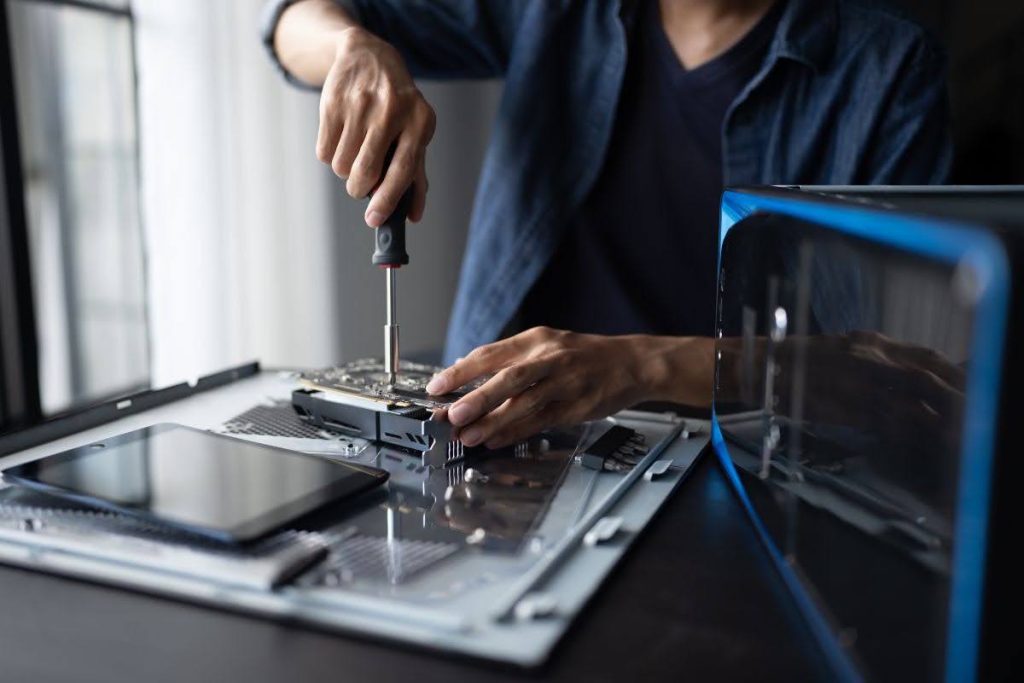
You press the power button. Nothing happens. No lights, no fans, no sound.
That silence is unsettling, especially if you need your computer for work today. But don’t panic just yet.
Most computers that won’t turn on can be fixed without replacing anything. The trick is working through the problem in the right order.
This guide walks you through exactly that, from the simplest checks to more advanced diagnostics, and tells you when it’s time to hand the job to a professional.
✅ Key Takeaways
- Always check power cables, outlets, and peripherals before assuming the worst.
- Lights or fans turning on but a blank screen usually means a display issue, not a power issue.
- Beep codes and LED patterns give real clues about what’s actually wrong.
- Opening the case comes with risk, so know your limits before you start.
- If basic checks don’t work, a professional diagnosis can save you time and money.
Understand What “Won’t Turn On” Actually Means First
Before you start troubleshooting, it helps to know exactly what kind of problem you’re dealing with.
“Won’t turn on” can mean a few different things. Getting this right saves you a lot of wasted effort.
No Power means nothing happens at all. No lights, no fans, no sound, no response from the power button.
No POST means the computer turns on, but nothing appears on the screen. You might hear beeps or see blinking lights.
No Boot means the computer passes its initial checks, but the operating system won’t load. You might see an error message instead.
No Video means the computer seems to be running, with fans spinning and lights on, but the monitor stays blank.
💡 Quick Tip: If you see any lights or hear any fan noise at all, your problem probably isn’t a true power issue. Skip ahead to the display troubleshooting section.
Knowing which category you’re in means you won’t waste time testing the wrong thing.
Common Symptoms and Causes
A few different symptoms fall under the broad banner of “won’t turn on.” It helps to recognise which one you’re facing.
- No power — the computer shows zero signs of life
- Intermittent power — it turns off unexpectedly or restarts on its own
- Power indicator issues — the LED lights don’t turn on at all
- Power button issues — the button doesn’t respond, or feels stuck
- Battery issues — a laptop won’t charge, drains fast, or isn’t recognised
📊 Quick Stat: Across a survey of IT professionals, 99% had dealt with a hardware failure at some point, and hard drive problems made up 80.9% of those cases.
That doesn’t mean your issue is definitely the hard drive. But it does show how common hardware trouble really is, and why a structured approach matters.
Step 1: Check the Basics First
Before you touch anything inside the case, rule out the simple stuff. This step alone fixes a surprising number of “dead” computers.
Start with the power cable or AC adapter. Make sure it’s firmly connected at both ends, not just resting in the socket.
Check the wall outlet itself. Plug in a lamp or phone charger to confirm the outlet is actually supplying power.
If you’re using a power strip or surge protector, check that it’s switched on. Try plugging directly into the wall instead, just to rule it out.
Finally, press the power button again, firmly. Sometimes a loose internal connection just needs a proper push.
⚠️ Warning: Don’t skip this step, even if it feels too simple. A huge number of “broken” computers turn out to be a loose cable or a dead outlet.
For laptops, the same logic applies. Check the adapter is secure, look for a light on the charger brick, and try a different outlet.
Step 2: Disconnect Everything and Isolate the System
A faulty peripheral can sometimes stop a computer from powering on at all. This step helps you rule that out.
Unplug everything except the power cable. That means your mouse, keyboard, printer, external drives, and any USB accessories.
Don’t forget to disconnect the monitor cable as well, whether it’s HDMI, DisplayPort, or something else.
With everything unplugged, try turning the computer on again.
If it powers on now, one of those devices was the problem. Plug things back in one at a time, testing after each one, until the issue comes back.
This process of elimination is slow, but it’s one of the most reliable ways to find a faulty accessory without opening the case.
Step 3: Look and Listen for Diagnostic Clues
Even a computer that won’t fully start often gives you hints about what’s wrong. Pay close attention to lights and sounds.
Check for any LED activity on the case, motherboard, or power button. A light that’s on or blinking means some power is reaching the system.
Listen closely when you press the power button. A single short beep usually means everything passed its initial check.
A longer pattern of beeps is different. That’s the system telling you something specific has failed, often the memory or graphics card.
| What You Notice | What It Likely Means |
| No lights, no sound, no fans | True power issue — check cables, outlet, PSU |
| Lights on, single short beep | Passed initial checks, may be a display issue |
| Multiple beeps or blinking pattern | Specific hardware fault (often RAM) |
| Fans spin briefly then stop | Possible short circuit or failing PSU |
💡 Quick Tip: Check your computer’s manual for what your specific beep pattern means. Every manufacturer uses slightly different codes.
These small clues narrow down the problem before you touch a single screwdriver.
Step 4: Rule Out a Display Problem, Not a Power Problem
Sometimes the computer is actually working fine, and the real issue is the monitor. This trips up a lot of people.
First, check the monitor’s own power light. If it’s off, the monitor itself might not be getting power.
If the light is on, make sure the monitor is set to the right input source, like HDMI 1 or DisplayPort 2.
Inspect the video cable at both ends. Try a different cable or a different port if you have one available.
The clearest test is connecting your computer to a completely different monitor or TV. If an image shows up there, the problem was your original display, not your computer.
If nothing appears on a second screen either, the issue is inside the computer, most likely the graphics card.
Step 5: Laptop-Specific Checks
Laptops have a few extra things worth checking that don’t apply to desktops.
Inspect the AC adapter and cable closely for any fraying, bending, or visible damage. A damaged adapter should be replaced, not used.
If your laptop has a removable battery, take it out and try powering on using only the adapter. If it turns on this way, the battery itself may be the problem.
Some laptops also support a Real-Time Clock reset. This resets the BIOS to its factory settings.
To try it, unplug everything, connect the AC adapter, then hold the power button for around 30 seconds until the light blinks a few times. Release it, then try turning the laptop on again.
⚠️ Warning: Holding the power button for too short or too long can cancel the reset. Aim for close to 30 seconds, and try again if it doesn’t work the first time.
If none of this helps, and you suspect physical damage, it’s worth having a professional take a proper look.
Step 6: Desktop-Specific Checks
Desktops give you a bit more room to troubleshoot, since components are easier to access.
Start by testing a completely different wall outlet. This rules out a dead socket or circuit issue.
Check the power supply unit itself. Some desktops have a small test button on the PSU that lights up if the unit is working correctly.
If you’re comfortable opening the case, reseating the RAM can help. Remove each stick, then push it firmly back into place until it clicks.
The graphics card is another common culprit. Remove it, check the slot for dust, then reinsert it firmly along with any extra power cables.
Clearing the CMOS is another option. This resets BIOS settings that may be causing a conflict, and it usually just means briefly removing a small coin-cell battery from the motherboard.
💡 Quick Tip: Always unplug the computer completely and touch a metal part of the case before working inside, to avoid static damage to components.
If you’ve tried all of this and nothing works, a barebones test, using only the essential parts needed to boot, can help isolate a faulty component. This is a more advanced step best left to someone experienced.
Step 7: Advanced Diagnostics for the Technically Confident
If you’re comfortable with hardware and basic tools, a few more advanced tests exist. These aren’t for everyone, and that’s okay.
Breadboarding means removing the motherboard from the case entirely and testing it with only the essential parts connected, outside the case.
Jumpstarting the motherboard involves briefly touching a screwdriver tip to two specific pins to bypass the power button and see if the system boots.
Testing PSU voltage rails with a multimeter can confirm whether the power supply is actually delivering correct voltage, rather than guessing.
⚠️ Warning: These tests involve working with live electrical components. If you’re not confident, or don’t own the right tools, this is exactly the point where a professional repair service becomes the safer and often faster option.
There’s no shame in stopping here. These steps exist for people who already work with computer hardware regularly.
When to Call a Professional
Some problems just aren’t practical to fix yourself, and that’s completely normal.
A computer repair specialist can properly diagnose and fix issues like:
- A failed power supply unit
- A dead or failing motherboard
- Bad RAM or memory modules
- A failing hard drive
- A laptop that’s been dropped or has liquid damage
- Windows corruption that prevents booting
📊 Quick Stat: In surveys of IT professionals, desktops were the single most common type of equipment to experience hardware failure, ahead of servers and other devices.
If your computer shows genuinely no signs of life after trying the basic checks, that’s usually the point to stop and get a proper diagnosis. Continuing to guess can sometimes make things worse or damage components further.
A good repair shop will test your parts, confirm exactly what’s wrong, and give you a clear cost before doing any work.
How to Prevent Power Issues in the Future
Once your computer is running again, a few habits can help avoid a repeat.
Always use a surge protector, especially in areas with unreliable power or frequent storms.
Keep your computer’s vents clear of dust, and make sure it has enough space around it for proper airflow.
Only use chargers and adapters approved by your device’s manufacturer. Cheap third-party adapters are a common cause of power problems.
Keep your drivers and operating system updated. Outdated software can sometimes contribute to restart loops and startup errors.
These small habits won’t prevent every failure, but they meaningfully reduce your risk.
Frequently Asked Questions
What should I do if the power button feels stuck?
Try pressing it gently first. If it’s still stuck, check for dust or debris around the button and clean it carefully.
Why does my laptop battery drain so quickly?
Close background apps you’re not using, and make sure your drivers and operating system are fully updated.
What if my computer turns on but the screen stays black?
Test it with a different monitor. If the second screen works, the issue is your original display, not your computer.
Why does my computer beep but not display anything?
Beep codes point to a specific hardware issue, often memory-related. Check your manual for what your exact pattern means.
Can a faulty charger cause power issues?
Yes. A damaged or non-approved charger can prevent your laptop from powering on properly, even if the battery itself is fine.
Why does my computer randomly restart instead of shutting down?
This can be caused by software issues, incorrect power settings, or in some cases, hardware problems. Updated drivers often resolve it.
When should I stop troubleshooting and call someone?
If basic checks don’t work and you’re not comfortable opening the case, that’s the right time to get a professional opinion rather than guessing further.
Conclusion
A computer that won’t turn on feels like a disaster in the moment, but it rarely is one.
Working through the checks in order, starting simple and only going further if you need to, solves the problem far more often than people expect.
And if you do reach the point where it’s out of your comfort zone, that’s exactly what professional repair services are there for.