
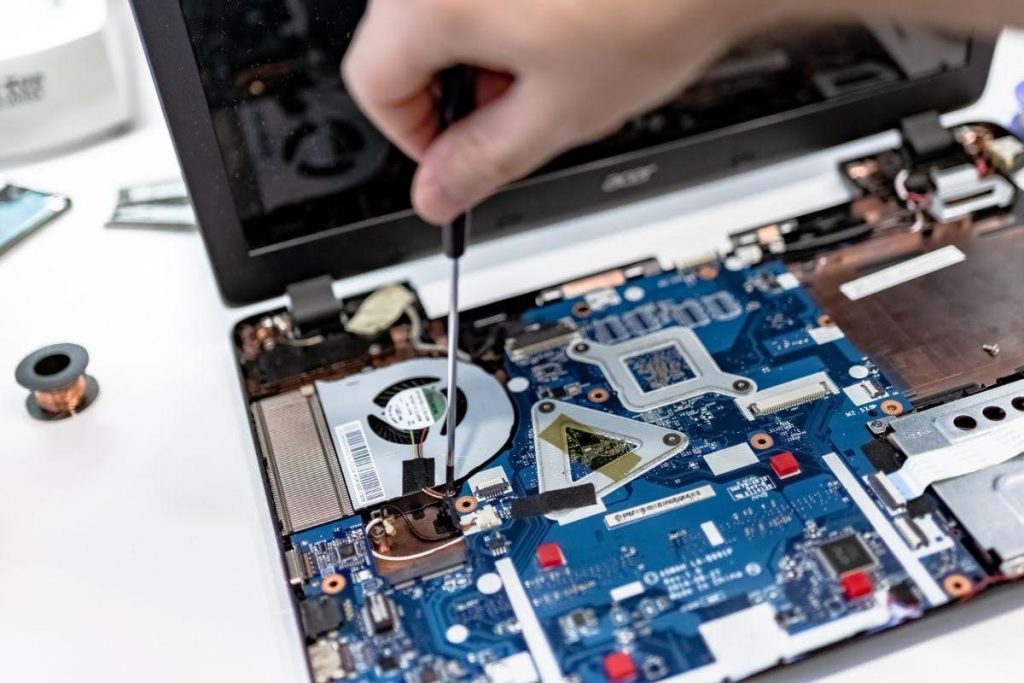
Your laptop is slowing down. It’s getting hot. The fan sounds like a tiny jet engine.
Most of the time, the fix isn’t a new laptop. It’s just dust.
Opening up your laptop lets you clean out the dust, swap a dying battery, upgrade the RAM, or replace a cracked screen. It’s cheaper than buying new. It’s also better for the planet.
📊 Stat: The world generated around 62 million metric tons of e-waste in 2022, and only 22.3% of it was properly recycled. Every laptop you repair instead of replace is one less contribution to that pile.
This guide walks you through the whole process, safely, from first prep to final test. You don’t need to be a technician. You just need patience and the right steps in the right order.
What You’ll Need Before You Start
Before you touch a single screw, gather your tools. Having everything ready stops you from digging through drawers halfway through the job.
Tools checklist:
- A small screwdriver set (Phillips and Torx heads)
- A plastic pry tool or spudger
- A can of compressed air
- An anti-static wrist strap
- A soft microfiber cloth
- Isopropyl alcohol, 70% or higher
- Cotton swabs
- A small container or magnetic tray for screws
💡 Quick tip: Before you start, look up your exact laptop model online. Screw count, screw type, and panel design change a lot between brands and even between models from the same brand. Ten minutes of research now saves you a cracked case later.
Step-by-Step Guide to Disassemble a Laptop Safely
Follow these steps in order. Skipping ahead is how laptops get damaged.
Step 1: Back Up Your Data and Note Your Recovery Key
This is the real first step, and it’s the one most guides skip.
Hardware work carries risk. A slipped screwdriver or a torn cable can damage your drive. Back up everything important to the cloud or an external drive first.
If your drive is encrypted, write down your recovery key somewhere safe. For Windows, that’s your BitLocker key. For Mac, that’s your FileVault key.
⚠️ Warning: Opening your laptop’s case may void your manufacturer’s warranty. Check your warranty terms before you start, especially if the laptop is still fairly new.
Step 2: Power Off, Unplug, and Prepare Your Workspace
Turn your laptop off completely. Don’t just close the lid, do a full shutdown.
Unplug it from the power adapter. Never work on a laptop that’s connected to power.
Find a clean, flat surface to work on. Somewhere with good lighting helps too, since you’ll be handling small screws.
Put on your anti-static wrist strap now, before you touch any internal parts. Static electricity can silently fry sensitive components.
Step 3: Remove the Battery
If your laptop has a removable battery, this is your next move. Slide or switch the release latch, then lift the battery out.
Removing the battery first cuts power to the whole system. That protects the components you’re about to work on from any accidental short circuits.
⚠️ Warning: Never skip this step if your laptop has a removable battery. Working on a laptop that still has power flowing through it is one of the most common causes of accidental damage.
Step 4: Open the Bottom Panel
Turn the laptop over. Most of the screws you need are on the bottom panel.
Screws often come in different lengths. Keep track of which screw came from which hole, a simple sketch on paper works well for this.
Once the screws are out, use your plastic pry tool to gently release the clips holding the panel in place. Work slowly around the edges. Never force it.
| Step | What To Watch For |
| Removing screws | Different lengths, some may be captive (stay attached to the panel) |
| Prying the panel | Clips around the perimeter, go slow, don’t force |
| Lifting the panel | Check for any ribbon cables still attached underneath |
Step 5: Identify Hidden Screws and Adhesive on Sealed or Unibody Laptops
Some laptops don’t give up their screws easily.
Thin ultrabooks and unibody-style laptops often hide screws under rubber feet or small stickers. Peel these back carefully to check.
Batteries in these models are usually glued down rather than clipped in. A few drops of isopropyl alcohol along the edge, left to sit for a minute, can loosen the adhesive enough to lift the battery with a plastic card.
Some panels are fully glued shut. In these cases, a heat gun on a low setting, held a safe distance away, softens the adhesive enough to open the panel without cracking it.
Manufacturers seal laptops this way partly for slimmer designs, and partly because it discourages self-repair.
📊 Stat: Over 80% of adult Americans say they’d support stronger right-to-repair laws, according to a Consumer Reports survey. If you’re working through this guide, you’re already part of that shift toward fixing rather than replacing.
⚠️ Warning: This is where most first-time repairers get stuck or crack a case. If you feel resistance and can’t see an obvious screw or clip, stop and search for your exact model online before forcing anything.
Step 6: Remove the Storage Drive (HDD, SSD, or M.2)
Locate your storage drive. Older laptops use a 2.5-inch hard drive, held in a small caddy or by screws. Lifting one side usually disconnects it from the motherboard.
Newer laptops use an M.2 SSD. This is a small stick that lies flat, usually held by a single screw.
Handle drives by their edges. Avoid touching the connector pins.
Step 7: Remove the Memory (RAM or SODIMM)
RAM sticks sit in slots, usually held by small clips on either side.
Gently push the clips outward. The RAM stick should pop up at an angle. Then slide it out of the slot.
💡 Quick tip: Some laptops have soldered memory that isn’t upgradeable at all, alongside one open slot for extra RAM. If you only see one stick and it won’t budge, check your model’s specs before assuming something’s wrong.
Step 8: Disconnect and Remove the Wireless Card
The wireless card is a small module, usually near the RAM, with two thin antenna cables attached.
Gently disconnect the antenna cables first. They’re delicate, so pull from the connector, not the wire itself.
Once disconnected, remove the screw holding the card and slide it out of its slot.
Step 9: Remove the CD/DVD Drive (Legacy Models)
If your laptop still has an optical drive, this one’s simple.
Find the single screw holding it in place, usually near the edge of the case. Remove it, then slide the drive out sideways.
Step 10: Access the Cooling System (Fan and Heat Sink)
The cooling system is usually one fan connected to a heat pipe, which runs across the processor and out to a heat sink.
You don’t always need to fully remove this part just to clean it. Often, you can reach it with compressed air once the bottom panel is off.
A laptop that runs cooler after a clean-out often lasts years longer before anything actually fails.
📊 Stat: Global e-waste is projected to reach 82 million tons by 2030. A simple dust-out and part swap, done every couple of years, is one of the easiest ways an individual can push back against that number.
If you do need to remove the cooling assembly fully for a deeper clean or thermal paste replacement, note the screw pattern, it’s often a specific tightening order that needs to be reversed carefully on reassembly.
Step 11: Remove the Keyboard
This step takes patience.
First, remove any screws marked for the keyboard, they’re often a different colour or grouped separately in your laptop’s manual.
Turn the laptop over and carefully lift the bezel above the keyboard. Some bezels click off, others need a gentle pry.
Once the bezel is off, lift the keyboard just enough to see the ribbon cable connecting it to the motherboard. Unlock the connector on both sides before pulling the cable free.
⚠️ Warning: Ribbon cables tear easily. Never pull one straight out without unlocking its connector first.
Step 12: Remove the Screen/LCD Assembly
If you’re replacing the screen or backlight, this is your final major step.
Unscrew the hinges connecting the screen to the base. There are usually two, one on each side.
Lift the screen assembly away from the base slowly, checking for any remaining cables still connected underneath.
Step 13: Clean the Internal Components
With everything accessible, it’s time to clean.
Use compressed air to blow dust out of the fan. Hold the fan blades still with your finger while you spray, spinning fan blades can generate damaging voltage.
Clean the heat sink the same way, blowing dust out and away from the components, not deeper into the laptop.
Wipe down RAM sticks and other accessible parts with a soft, dry, lint-free cloth.
💡 Quick tip: Point your compressed air can upright while spraying. Tilting it can release liquid propellant onto your components instead of just air.
Step 14: Clean External Surfaces
While things are open, clean the outside too.
For the keyboard, tilt the laptop and use compressed air to blow debris out from between the keys. Follow up with a cotton swab lightly dampened in isopropyl alcohol for stuck-on grime.
For the screen, use only a microfiber cloth. Wipe gently in a circular motion. Avoid household glass cleaners, they can damage the coating.
For ports and connections, a quick blast of compressed air clears out lint and dust that builds up over time.
Step 15: Reassemble Your Laptop
Work backwards through every step you just completed.
Reconnect the screen, keyboard, cooling system, wireless card, memory, and storage drive in reverse order.
Match every screw back to its original hole using the notes or sketch you made in Step 4. Tighten firmly, but don’t overtighten, plastic casings crack easily under too much force.
Reconnect or reinsert the battery last, once everything else is back in place.
Step 16: Power On and Test
Plug your laptop back in and power it on.
Check that everything works: the screen displays properly, the keyboard responds, the fan spins up, and there’s no unusual noise or smell.
Run your laptop for ten or fifteen minutes and check the temperature. If it’s cooling better and running quieter than before, the job’s done properly.
⚠️ Warning: If your laptop doesn’t power on, don’t panic. Double-check that every connector is fully seated, especially the battery cable and the RAM sticks. A loose connection is the most common cause.
Conclusion
Disassembling a laptop isn’t as scary as it sounds once you know the order of operations.
Remember these core points:
- Back up your data and note your recovery key before you touch a single screw
- Always remove the battery before working on anything else
- Keep every screw organised by location as you go
- Check for hidden screws and adhesive on thin or unibody laptops before forcing a panel open
- Handle ribbon cables and antenna wires gently, they tear far more easily than you’d expect
- Reassemble in the exact reverse order, and test thoroughly before calling it done
Take it slow, follow the order, and your laptop will thank you for it.